

App Configuration
App configuration defines application-wide settings that are shared across the whole Pianola interface. These settings sit above individual modules and are used for choices such as visual identity, language, formatting, login behaviour, and security.
Visual Identity
Application Name
The application name is the main name used for the app. It can appear in the browser title, login screens, and administration areas.
This should usually be the client-facing name of the application rather than an internal project code name.
Logo
The logo is shown in the application shell, loading screen, and other branded areas of the interface.
Separate logo versions can be used for compact navigation states where the full logo would not fit well. This allows the app to keep a recognisable brand mark when the navigation drawer is collapsed or hidden.
Favicon
The favicon is the small icon shown in the browser tab. It should normally match the application logo or use a simplified brand mark that remains legible at a small size.

Login Background
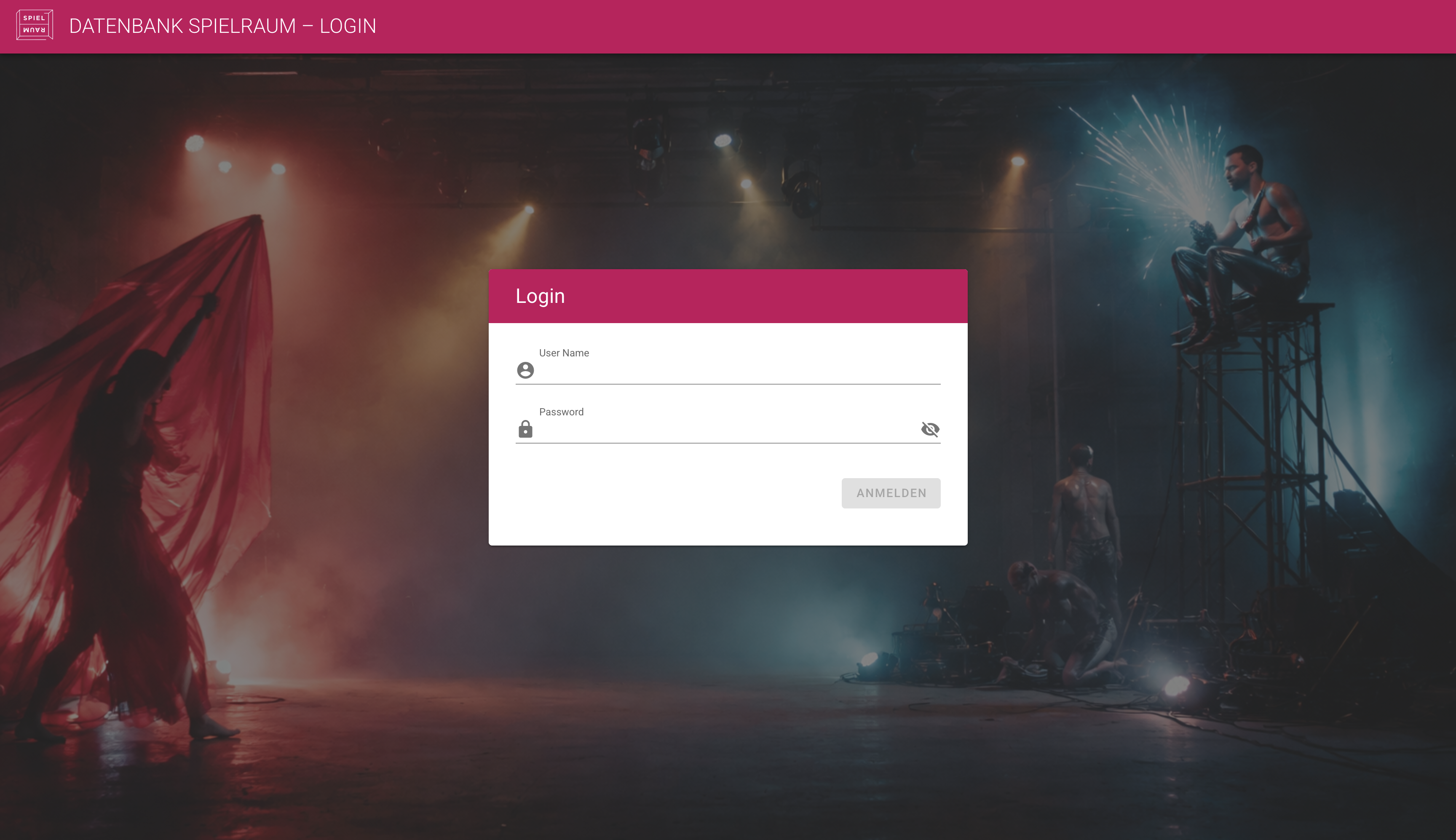
The login background controls the image shown behind login and password-related screens.
This setting is useful when the login experience should feel visibly connected to the client's brand, a project identity, or a specific visual theme.
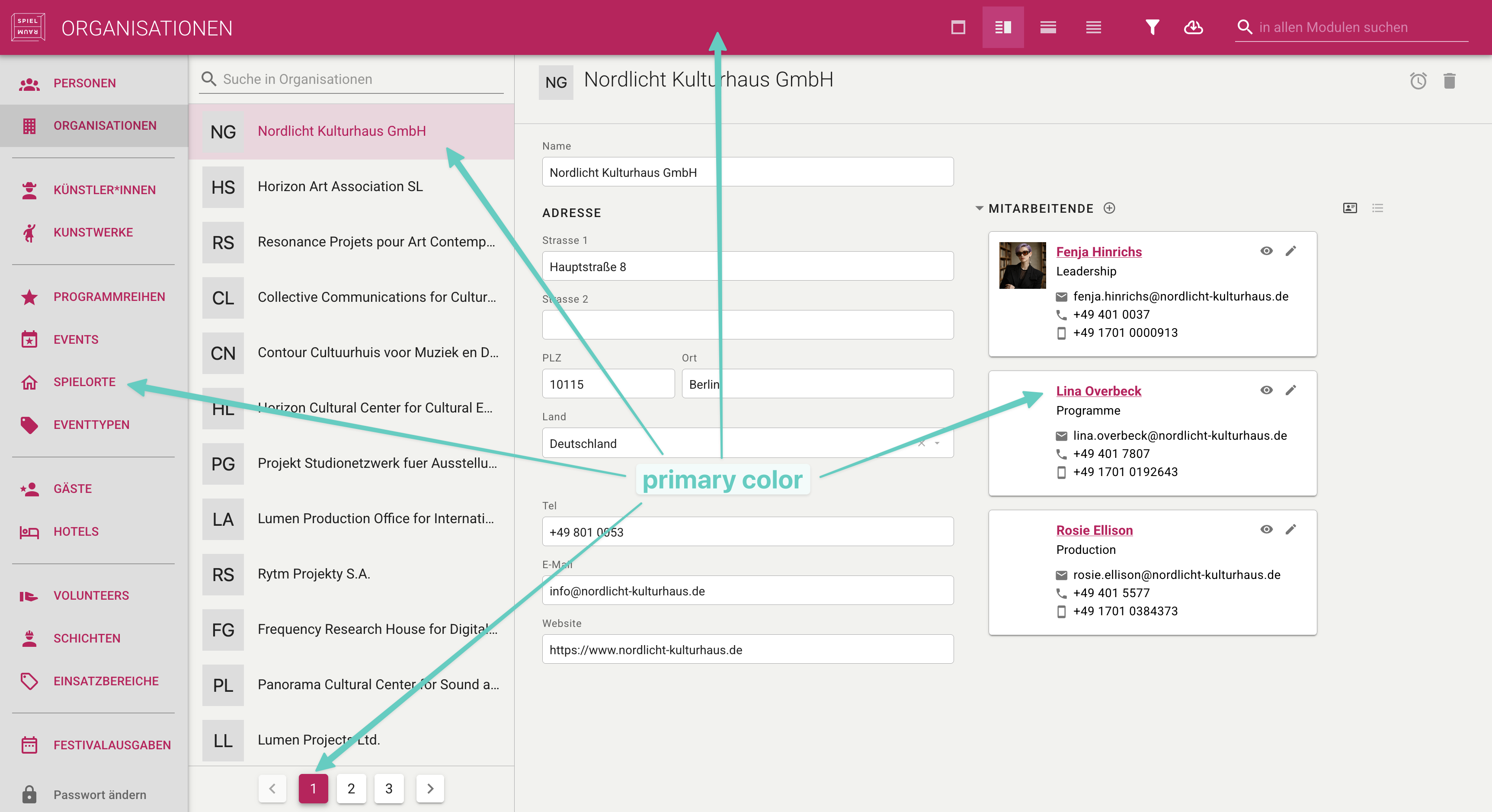
Primary Colour
The primary colour is the main accent colour used across the interface. It affects buttons, highlights, loading states, and other recurring interface elements.
Module-specific colours can still be used where different parts of the application need their own visual identity.
Background Colour
The background colour sets the default page background behind content areas.
This is usually a quiet neutral colour. It should support readability and should not compete with tables, forms, or record content.
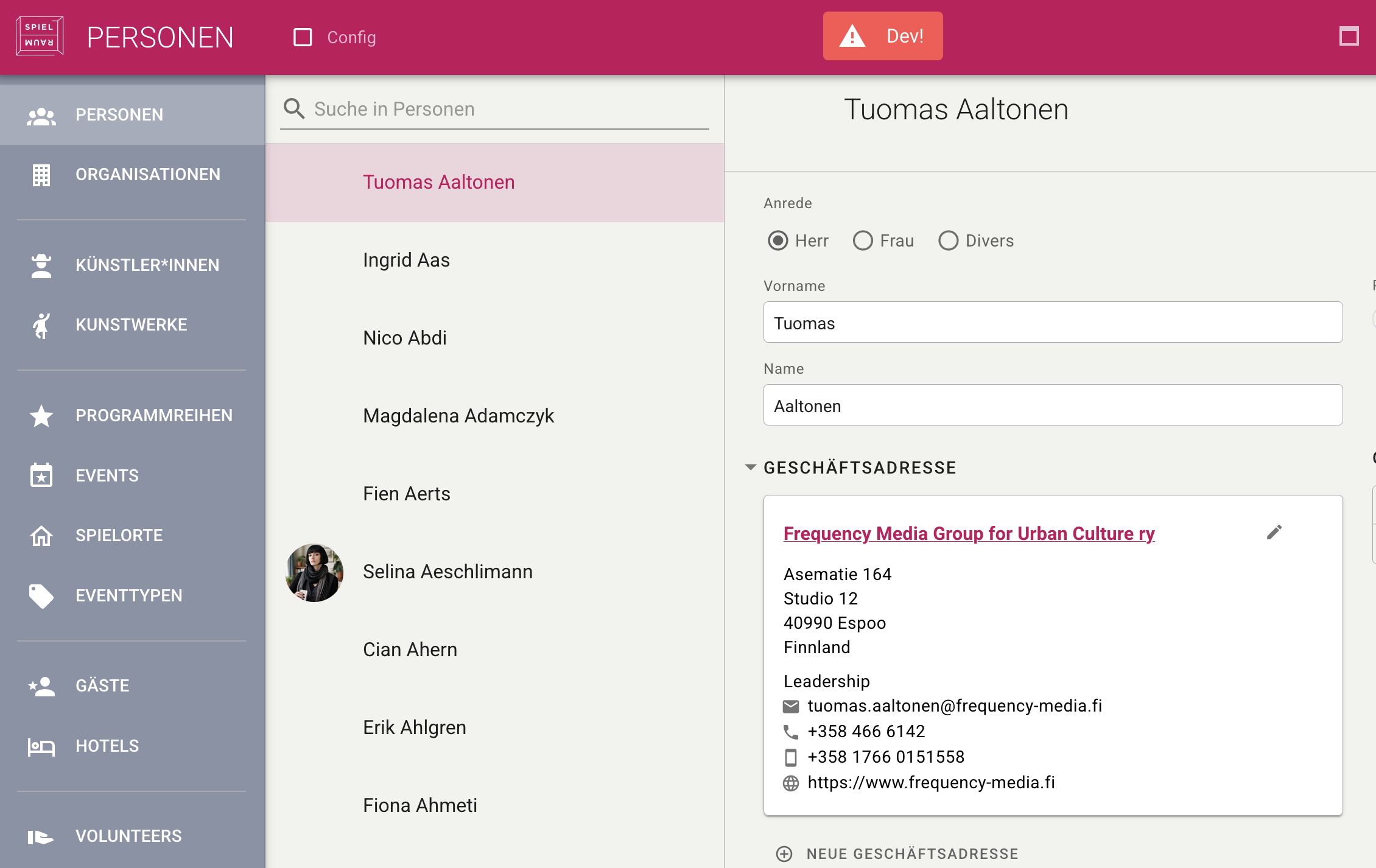
Navigation Drawer Colours
The navigation drawer can have its own background and item colours. This controls the main navigation area on the left side of the application.
The drawer can also be set to a dark style when the selected colours work better on a dark background.
Font Choices
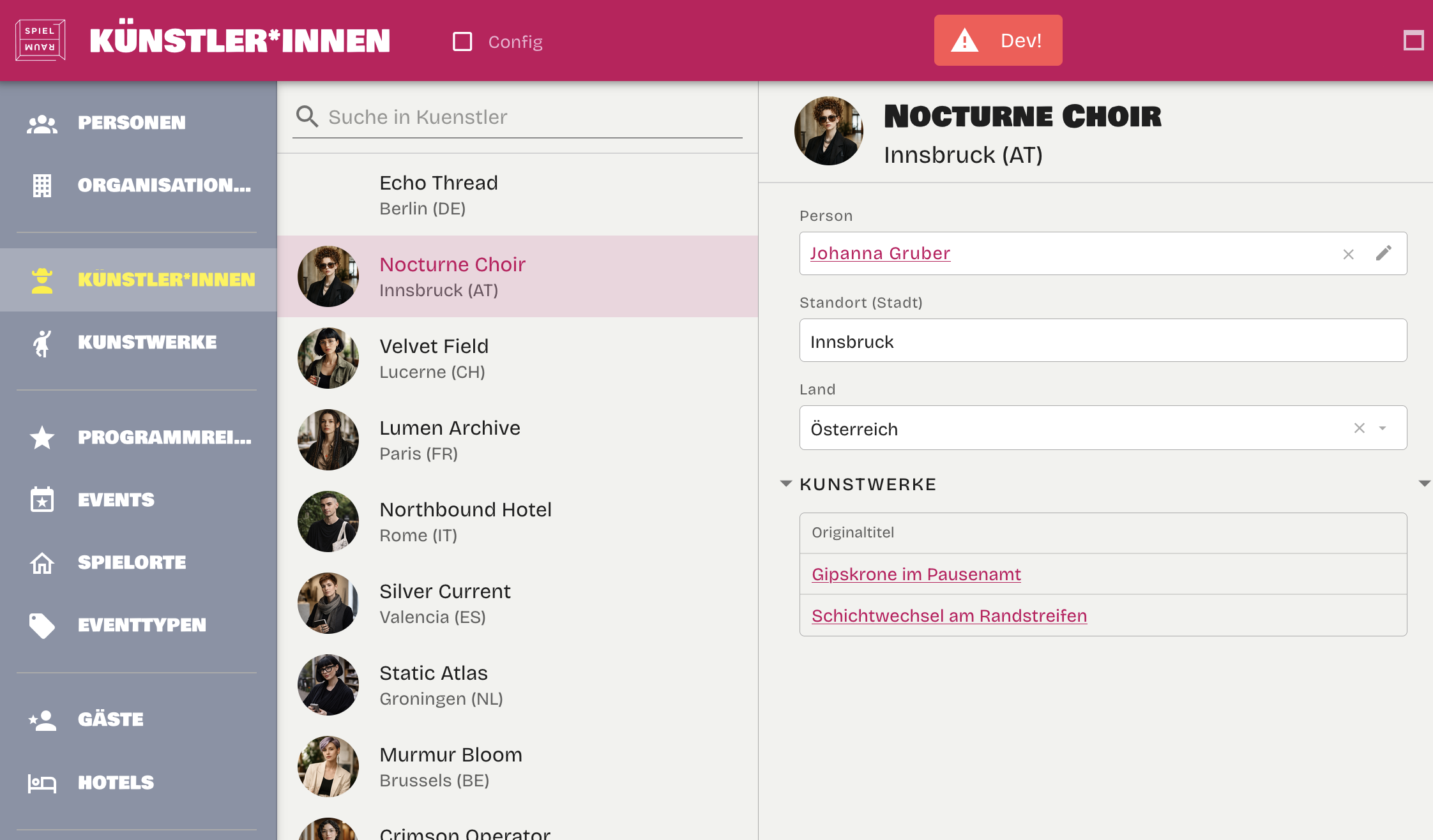
The application can define default font choices for the general interface and for title areas.
Most projects use the standard Pianola defaults unless the application needs to match a specific brand system.
Language and Formats
Application Language
The application language sets the default language used for built-in interface text, date labels, and standard messages. The current choices are English and German.
This does not replace project-specific content translation. It controls the default application interface language.
Number Separators
The decimal separator and thousand separator can be configured centrally.
For example, an English-language application might display 1,000.50, while a German-language application might display 1.000,50. These settings are important when users enter or review numeric data in tables and input fields.
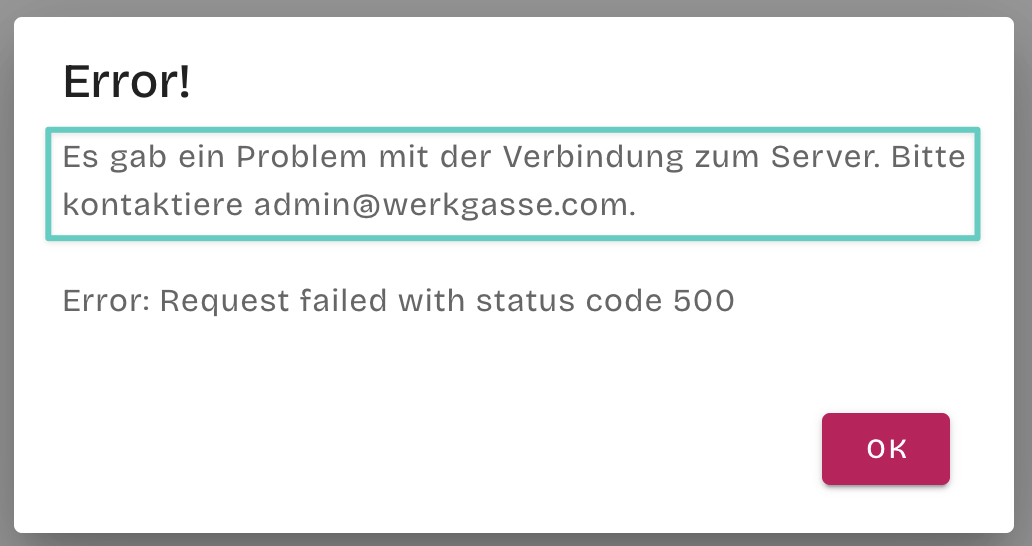
Default Error Message
The default error message appears when the application cannot complete a request and no more specific message is available.
The message should be practical and project-specific. It can explain that the request failed, suggest refreshing the page, and provide the appropriate support contact when needed.
Login and Security
Default Password for New Users
A default password should be defined for newly created users.
Users always have to change their password after they receive a new account and log in with the default password.
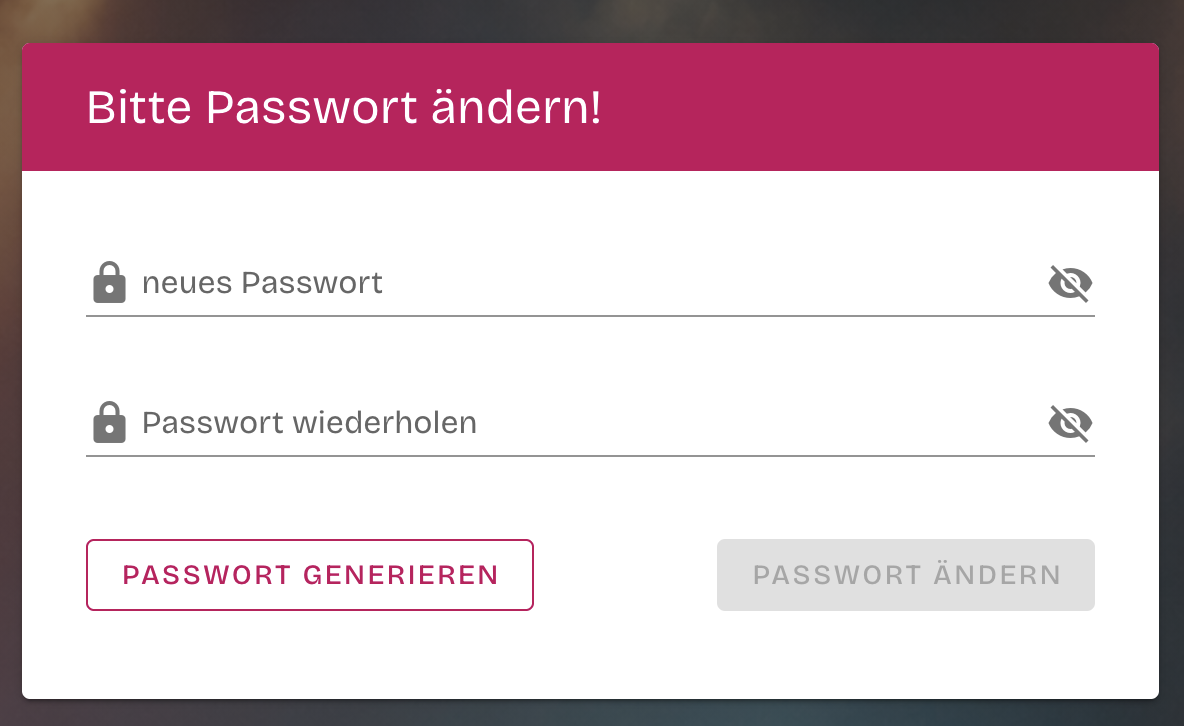
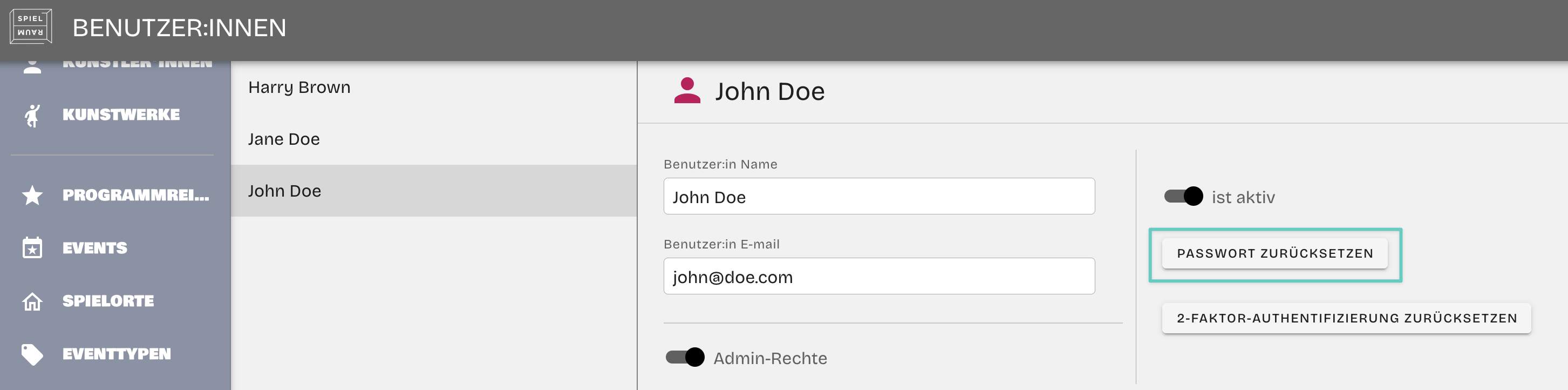
Users with an admin role have access to the user administration panel and can reset passwords for other users. When an admin resets a password, Pianola applies the configured default password again, and the user is then asked to choose a new password after logging in.
Two-Factor Authentication
Two-factor authentication can be enabled for login flows. When enabled, users need an additional authentication step after entering their password.
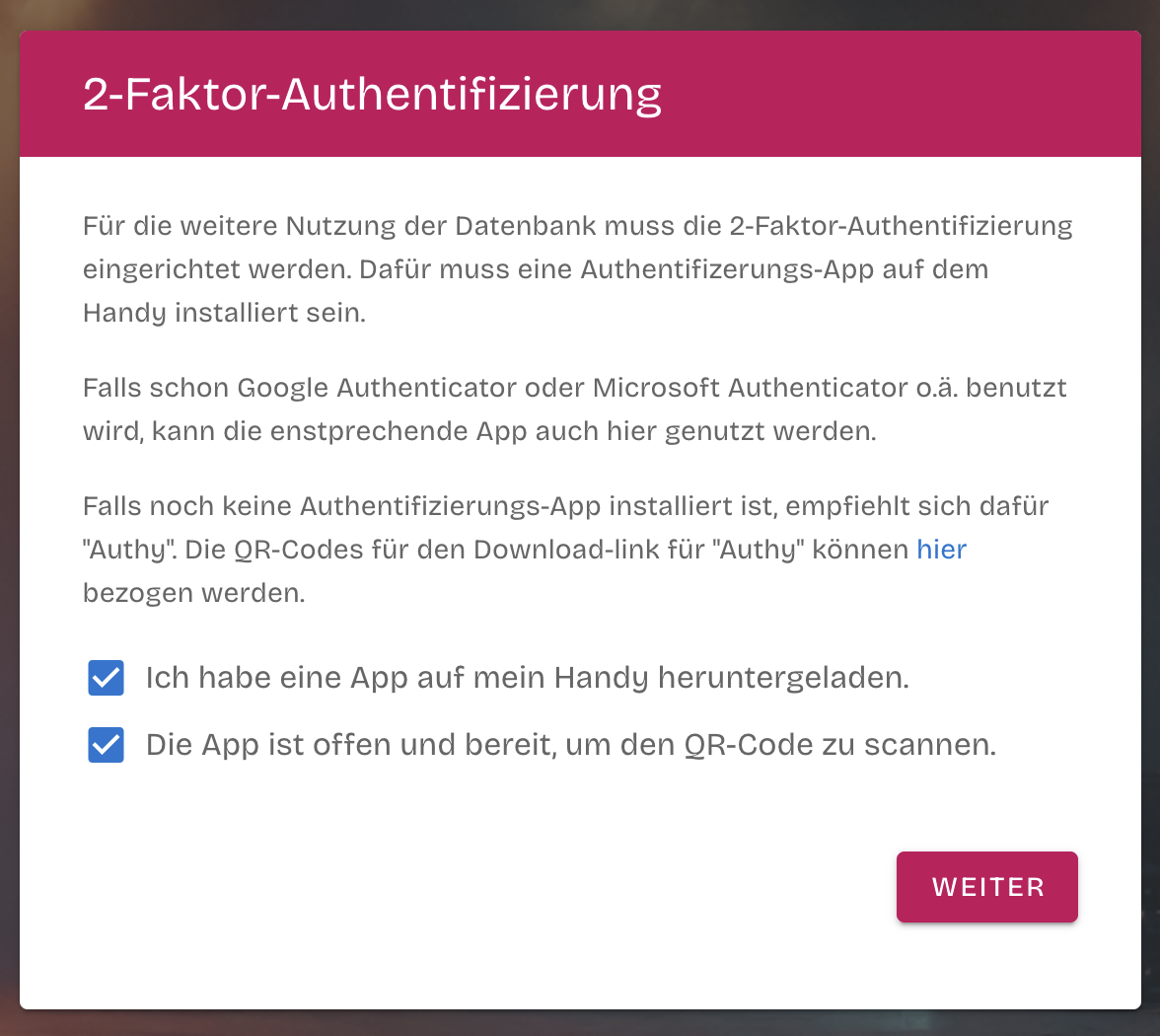
This is usually considered for applications with sensitive data, broader user groups, or stricter organisational security requirements. When a user first needs to set it up, Pianola leads them through the process directly in the login flow.
The first step explains that an authenticator app is required on the user's phone. The setup screen can refer users to common authenticator apps and asks them to confirm that the app is installed and ready before continuing.
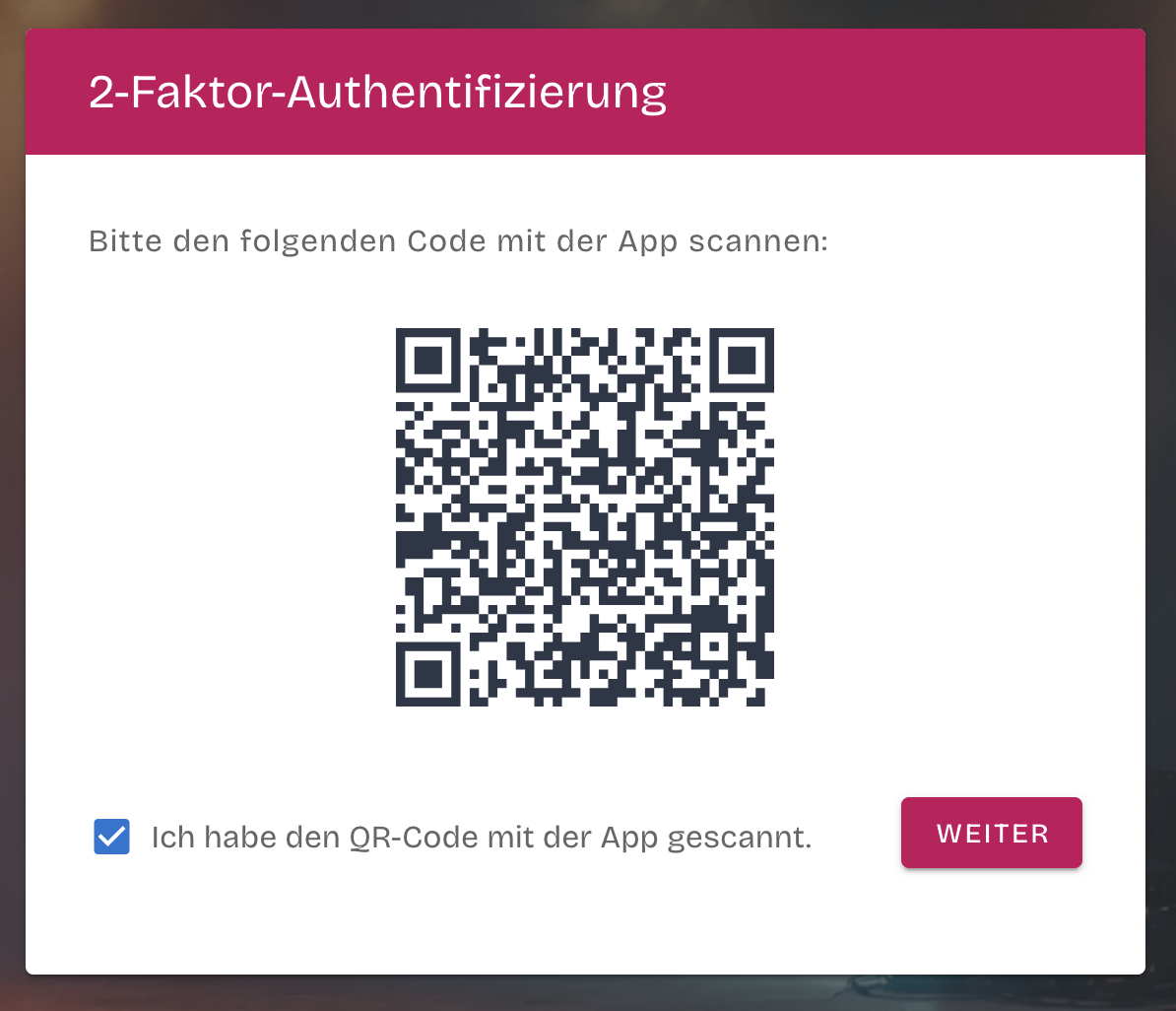
The next step shows a QR code. The user scans this code with the authenticator app, which creates the connection between the app and the user's Pianola account.
After the setup is complete, Pianola confirms that the user can continue using the application.
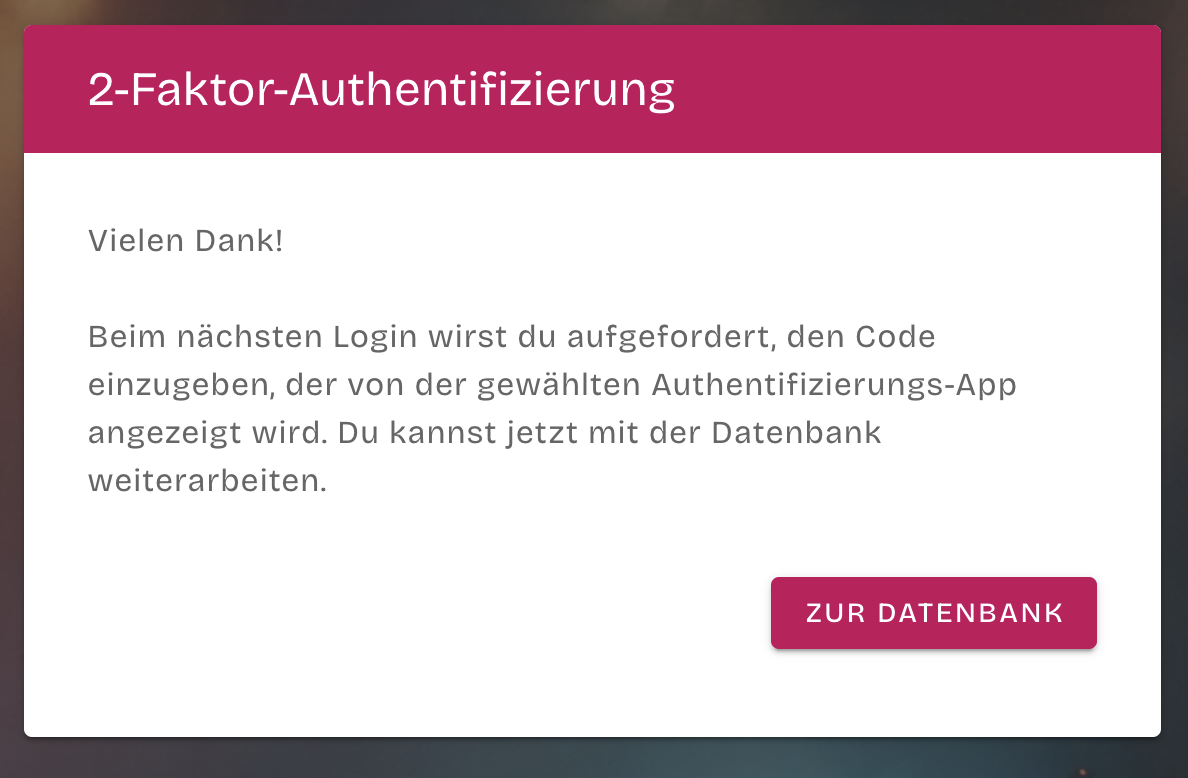
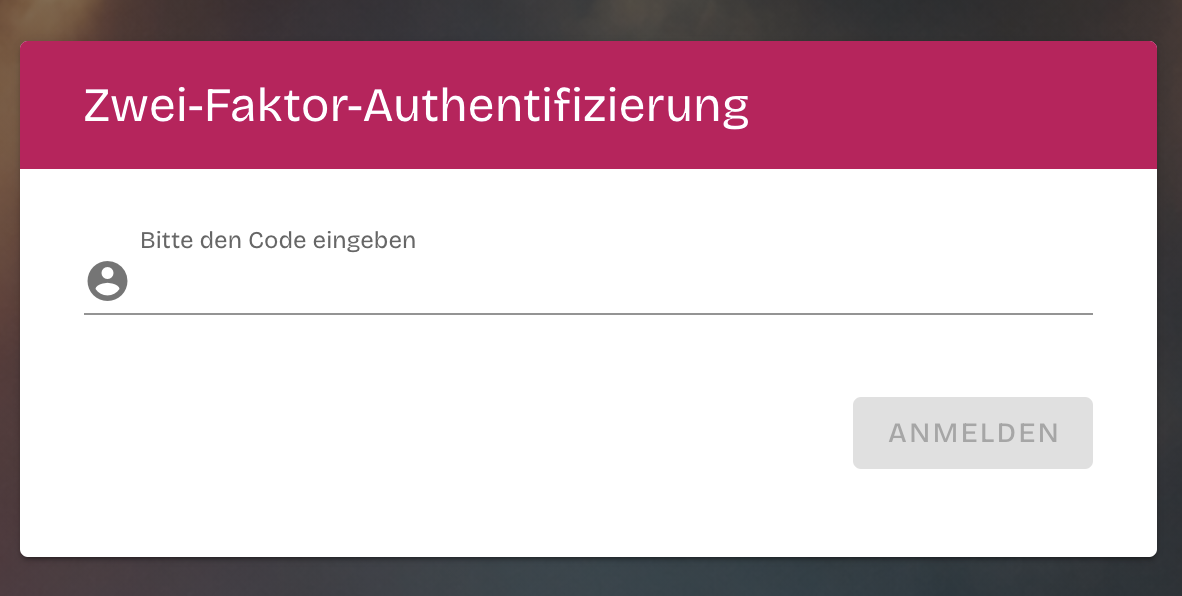
On later logins, the user is asked to enter the current code shown in their authenticator app.
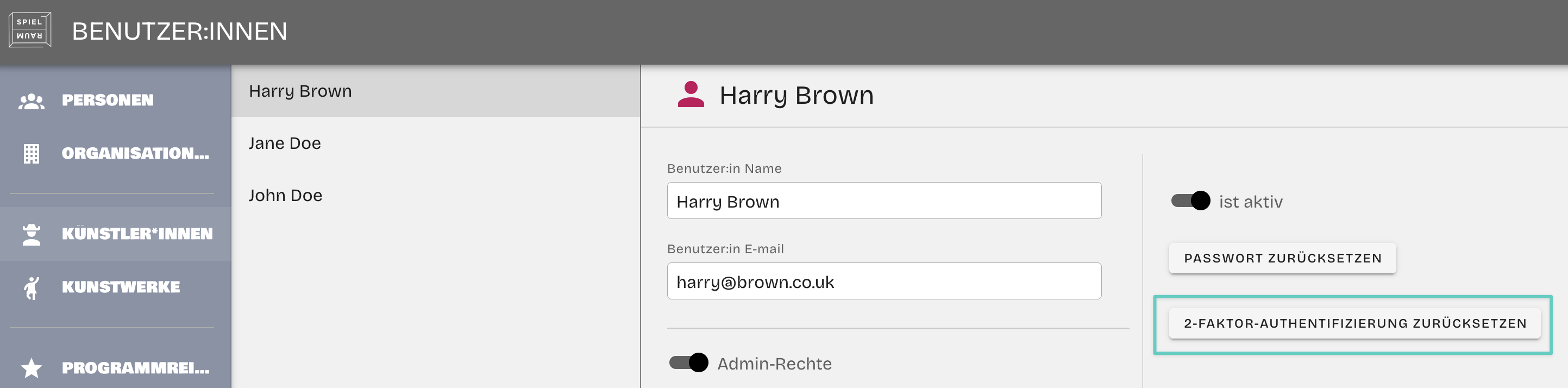
If a user loses access to their authenticator app or needs to set up two-factor authentication again, an application administrator can reset the user's two-factor authentication from the user administration panel. This clears the existing setup so the user can start fresh with a new QR code during the next setup flow.
Settings Access
Access to settings pages can be limited to administrators.
This keeps project-level settings and value tables away from ordinary users when those areas should only be maintained by a smaller group.